
Top Stories
Urgent Alert: Motherboards Risk Overvolting CPUs—Check Yours Now!

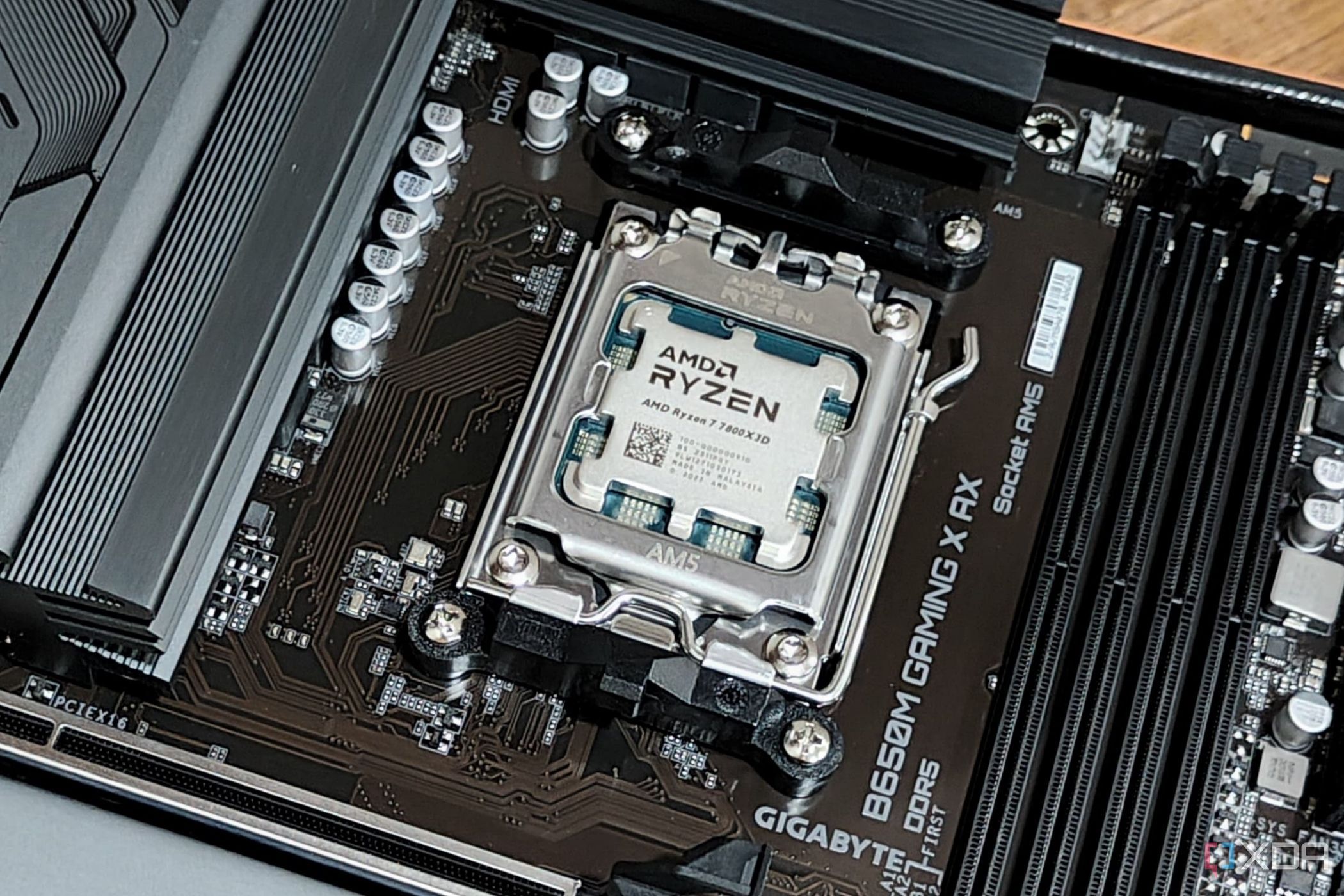
UPDATE: Users are being warned that their motherboards may be overvolting CPUs, risking significant damage. This urgent issue stems from factory-set overclocking features that many motherboard manufacturers enable by default, leading to increased power draw and elevated temperatures.
This revelation comes as experts urge PC builders to reassess their BIOS settings immediately. October 2023 data shows that features like MultiCore Enhancement for Intel and Precision Boost Overdrive for AMD can push CPUs beyond safe operating limits, raising concerns over potential long-term damage.
Many users assume that factory BIOS settings are optimized for stability. However, these settings can often lead to thermal issues and accelerated degradation of the CPU. This is particularly alarming as it misleads users into blaming cooling solutions rather than the motherboard’s built-in settings.
Why This Matters: The transparency issue surrounding these BIOS configurations is critical. Users may not realize their CPU is being overclocked, leading to potential overheating and instability. This can cause significant distress, especially for those relying on their systems for intensive tasks. Moreover, motherboard vendors typically implement a one-size-fits-all voltage strategy, ignoring the unique characteristics of individual CPUs.
In a recent move to address these concerns, ASUS announced adjustments for their Z790, H770, and B760 motherboards. These updates include a 90°C thermal cap for improved CPU temperature management. However, users must manually update their BIOS to benefit from these changes, or they risk continuing to operate under harmful settings.
How to Check Your Settings: To protect your CPU, follow these steps to determine if your motherboard is overvolting:
1. Restart your PC and hold the BIOS access key (usually Del, F2, F10, or Esc) during startup.
2. Navigate to the BIOS interface and switch to Advanced Mode if needed.
3. Look for sections labeled AI Tweaker, Overclocking, Performance, or CPU Frequency.
4. Check for settings like MultiCore Enhancement or Precision Boost Overdrive and disable them if they are enabled by default.
After making changes, save the settings and exit. Your system will reboot with the new configuration.
This alert serves as a critical reminder that not all factory settings are safe. If you notice unusual behavior during benchmarking or performance testing, it’s essential to investigate your BIOS settings. Features designed to enhance performance can lead to higher temperatures and accelerate wear on your CPU, potentially reducing its lifespan.
Stay informed and take action now to ensure your system’s longevity. Share this urgent update with fellow PC builders to spread awareness about the risks of motherboard overvolting!

Urgent: Vehicle Fire Closes Two Lanes on I-215 in Salt Lake City

Knicks Dominate Raptors 116-94 at Home, Extend Winning Streak

Hallmark’s ‘Christmas at the Catnip Café’ Premieres Tonight!

Millville Woman Arrested for Threatening U-Haul Worker with Baton

Japan’s PM Takaichi Confirms Continued Fiscal Management Strategy

Bitcoin Plummets Below $88K Amid Tether Concerns and Warnings

Designers Unveil 5 Urgent Tricks to Transform Outdoor Eyesores

Shark Teeth Research Reveals Urgent Need to Protect Species

Church Members Unite in Resilience After Thanksgiving Fire

University of Hawaiʻi Joins $25.6M AI Initiative to Monitor Disasters

Toledo City League Announces Hall of Fame Inductees for 2024

DOJ Seizes $15 Billion in Bitcoin from Major Crypto Fraud Network

Sharp Launches Five New Aquos QLED 4K Ultra HD Smart TVs

Celtics Coach Joe Mazzulla Dominates Local Media in Scrimmage

Mutual Advisors LLC Increases Stake in SPDR Portfolio ETF

Community Unites for 7th Annual Walk to Raise Mental Health Awareness

Western Executives Confront Harsh Realities of China’s Manufacturing Edge

INK Entertainment Launches Exclusive Sofia Pop-Up at Virgin Hotels
-
Science4 weeks ago
University of Hawaiʻi Joins $25.6M AI Initiative to Monitor Disasters
-
 Lifestyle2 months ago
Toledo City League Announces Hall of Fame Inductees for 2024
-
 Business2 months ago
DOJ Seizes $15 Billion in Bitcoin from Major Crypto Fraud Network
-
 Top Stories2 months ago
Sharp Launches Five New Aquos QLED 4K Ultra HD Smart TVs
-
 Sports2 months ago
Celtics Coach Joe Mazzulla Dominates Local Media in Scrimmage
-
 Politics2 months ago
Mutual Advisors LLC Increases Stake in SPDR Portfolio ETF
-
 Health2 months ago
Community Unites for 7th Annual Walk to Raise Mental Health Awareness
-
 Science2 months ago
Western Executives Confront Harsh Realities of China’s Manufacturing Edge
-
 World2 months ago
INK Entertainment Launches Exclusive Sofia Pop-Up at Virgin Hotels
-

 Politics2 months ago
Major Networks Reject Pentagon’s New Reporting Guidelines
-

 Science1 month ago
Astronomers Discover Twin Cosmic Rings Dwarfing Galaxies
-

 Top Stories1 month ago
Randi Mahomes Launches Game Day Clothing Line with Chiefs